Overview
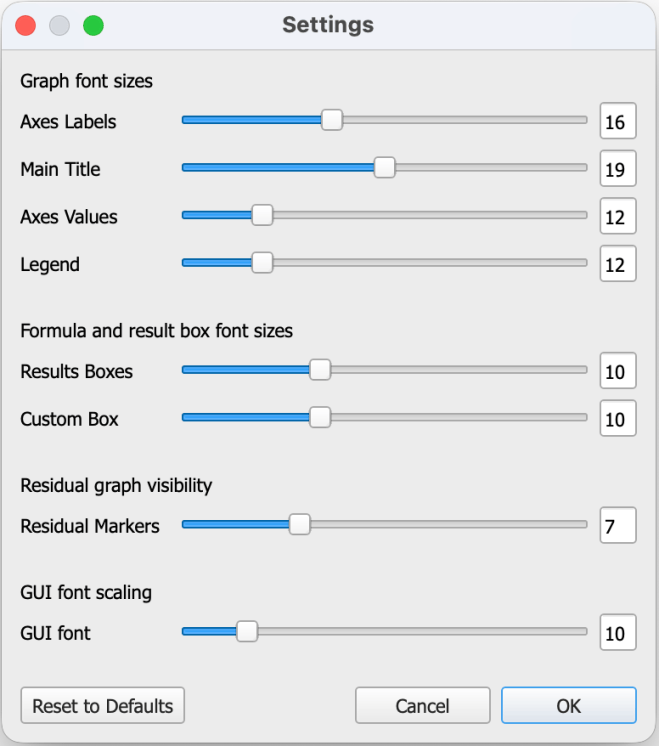
In this dialog you can adjust the fonts and window scaling so the interface and plots appear correctly on any screen or output.
01Font sizes
You can set individual font sizes for:
- Axes labels
- Main title
- Axes values and legends
- Results pane
- Custom function box
Adjusting these values updates the display immediately, making it easy to find a comfortable, consistent visual balance for your plots.
The font size slider in the graph menu bar. This takes the relative values that you set above and adjusts all of the fonts simultaneously according to these relative values. Sizes in this dialog will be updated accordingly. If you don’t like the realtive font sizes after using the slider, adjust the values here and the slider will use the new values.
02Residual graph visibility
The Residual Markers control adjusts size of the point markers in the residuals plot pane. These are adjusted here and act independently of the markers in the main graph area
03Window font scaling
The GUI font scaling control adjusts both the font size and the overall size of visible GUI elements. This keeps CFTool’s proportions correct across different displays and resolutions — for example, high-DPI or 4K monitors.
Tip. Use this setting rather than the operating system’s scaling to keep fonts and buttons consistent within the app.
04Reset to Defaults
At the bottom of the dialog, Reset to Defaults:
- Restarts CFTool.
- Restores all settings to their factory defaults.
- Clears the recent-file list.
Use this if the interface ever appears distorted after experimenting with scaling or font settings.

