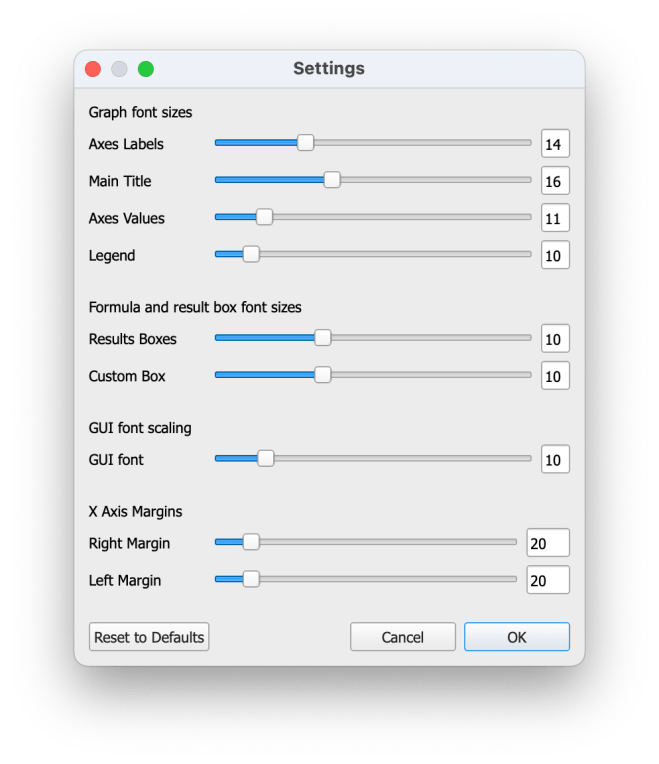
The
Settings dialog allows you to adjust the fonts, scaling, and margins used throughout CFTool so the interface and plots appear correctly on any screen or output.
Font sizes
You can set individual font sizes for:
- Axes labels
- Main Title
- Axes values and Legends
- Results pane
- Custom function box
Adjusting these values updates the display immediately, making it easy to find a comfortable and consistent visual balance for your plots.
Window font scaling
The
Main window font scaling control adjusts both font size and the overall size of visible GUI elements.
This helps CFTool maintain correct proportions across different displays and resolutions — for example, high-DPI or 4K monitors.
Tip: Use this setting rather than the operating system’s scaling to keep fonts and buttons consistent within the app.
Plot margins
Use the
Margin widths controls to set the blank space to the left and right of the plotted data.
The fitted curve extends to the
axes limits, so increasing the margin lets you
extrapolate the fit beyond the data range if needed.
Exceptions:
- Spline fits, and plots with Scale to Data selected (from the graph context menu) ignore the margin setting and fit only within the data range.
- Functions undefined below zero are not extrapolated into negative values.
Tip: A small positive margin can make the data and fit clearer by avoiding points sitting exactly on the axis lines.
Reset to Defaults
At the bottom of the dialog is a
Reset to Defaults button.
Selecting this:
- Restarts CFTool.
- Restores all settings to their factory defaults.
- Clears the recent file list.
Use this option if the interface ever appears distorted after experimenting with scaling or font settings.
 Software Utilities