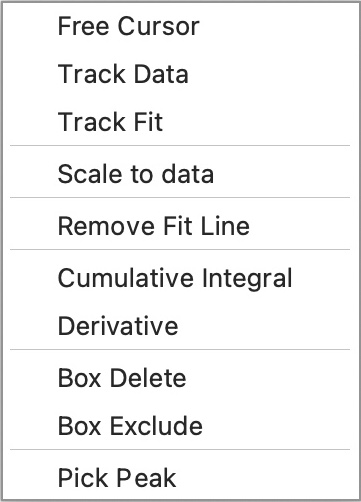
 Right-clicking anywhere in the plot area opens a context menu with options that depend on the current state of the plot and the tools in use.
It provides shortcuts for inspecting data, adjusting scaling, managing fits, and editing data points directly on the graph.
Cursor and tracking tools
The first three options create crosshair cursors that allow you to inspect specific parts of the graph.
The X and Y positions of the crosshairs appear at the top-left corner of the plot window.
These are separate from the mouse position indicator in the toolbar.
| Cursor type | Description |
|---|---|
| Free Cursor | Crosshair follows the mouse freely (not linked to data). |
| Track Data | Crosshair snaps from point to point along the dataset, following the mouse’s X position. |
| Track Fit | Crosshair follows the fitted curve rather than the raw data. |
| Track Integral / Track Derivative | Follow the cumulative integral or derivative curves, respectively. |
When a cursor is active, the context menu includes Hide Cursor to remove it.
Escape key: Press Esc to cancel any active cursor, end a Pick Peaks operation, or exit a zoom.
The figure will replot automatically afterward.
Scaling options
-
Scale to Data – sets the X-axis range to match the data exactly, with no extrapolation.
-
Scale to Margin – extends the X-axis range to the margins set in the Settings dialog, allowing extrapolation of fits beyond the data.
The context menu toggles between these two options depending on the current mode.
Fit management
-
Remove Fit Line – deletes the current fit from the plot.
-
Subtract Fit – subtracts the current fit from the data.
This is useful for baseline subtraction, especially when combined with the Box Exclude tool.
Integrals and derivatives
Once a fit has been completed, two additional options become available:
-
Cumulative Integral – plots the running integral of the current fit between the data limits.
-
Derivative – plots the derivative of the current fit.
When selected:
-
A secondary Y-axis appears on the right-hand side.
-
A corresponding legend entry is added.
-
An option to remove the line also appears.
Note: Because integrals and derivatives use very different scales, they cannot be displayed simultaneously.
Remove one before plotting the other.
Data editing tools
-
Box Delete – drag a rectangle across data points to permanently delete them from the plot.
-
Once used, the menu shows an Undelete option that restores all manually deleted points.
-
Manual deletions are not saved unless you save the project, or (in Data-only mode) open the Edit Dataform and explicitly save.
-
-
Box Exclude – drag a rectangle across data points to exclude them from fitting.
-
Excluded points remain visible as a separate dataset plotted in black, with a legend entry.
-
The context menu then shows Remove Exclusions to restore the full dataset.
-
Tip: Box Delete removes points entirely, while Box Exclude simply omits them from fitting but keeps them visible for comparison.
Peak tools
These options appear only when a Peak Type function is selected from the built-in functions menu.
-
Pick Peak(s) – activates a crosshair to mark approximate peak positions.
-
The number of peaks is set in the Peak Types menu when the fitting option is selected.
-
Each mouse click near a peak adds a position to the list shown in the Feedback text box (bottom right).
-
These positions are used as initial estimates in the Fit Options dialog.
-
When all peaks have been selected, CFTool immediately performs the fit.
-
-
Show Sub-Peaks – if more than one peak has been fitted, this plots the individual component peaks that make up the overall fit line.
-
Use Remove Sub-Peaks to hide them again.
-
Quick reference summary
| Category | Option | Function |
|---|---|---|
| Cursor tools | Free Cursor | Move crosshair freely |
| Track Data | Snap to data points | |
| Track Fit | Follow fitted curve | |
| Track Integral / Derivative | Follow integral or derivative curves | |
| Hide Cursor | Remove active cursor | |
| Scaling | Scale to Data / Margin | Toggle between data extent and margin extent |
| Fit management | Remove Fit Line | Delete current fit |
| Subtract Fit | Subtract fit from data | |
| Calculations | Cumulative Integral | Plot running integral |
| Derivative | Plot derivative of fit | |
| Data editing | Box Delete / Undelete | Delete or restore points |
| Box Exclude / Remove Exclusions | Exclude or restore points from fitting | |
| Peak tools | Pick Peak(s) | Select peak positions for fitting |
| Show / Remove Sub-Peaks | Show or hide fitted component peaks |
Best practice
Tips for safe data editing
Use Box Exclude when testing the influence of outliers — it is reversible, non-destructive and honestly reflects your data processing steps.
Use Box Delete only when you are sure the points are invalid and you are justified in removing them permanently.
To keep your raw data intact, save as a new project or new data file before making permanent edits.
Always verify after deleting or excluding points that the legend and fit indicators reflect the intended data subset.
- To exclude a single point you can use CTRL (CMD on a Mac) + right-click on the point.
 Software Utilities